


Denon DJ DN-X1600 - Setup with a Mac Computer
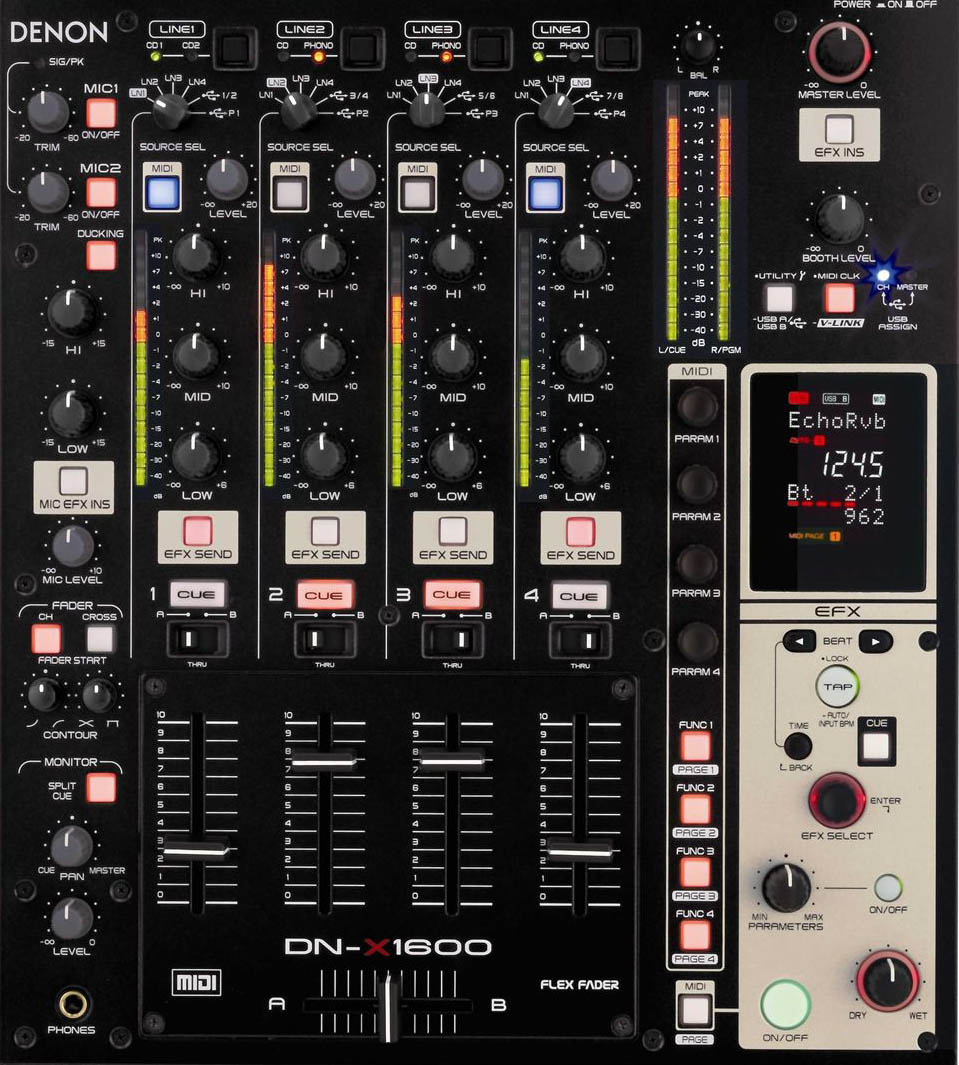 The Denon DJ DN-X1600 is a class compliant audio device and does not require any additional drivers to work on in Mac computers. If the mixer is not immediately recognized by your Mac computer, follow this guide as it will show you how to setup the DN-X1600 as your default device for sound output on your Mac.
Table of Contents:
Check Firmware Version
First, ensure the mixer is running the latest version of the firmware which is currently v2000.
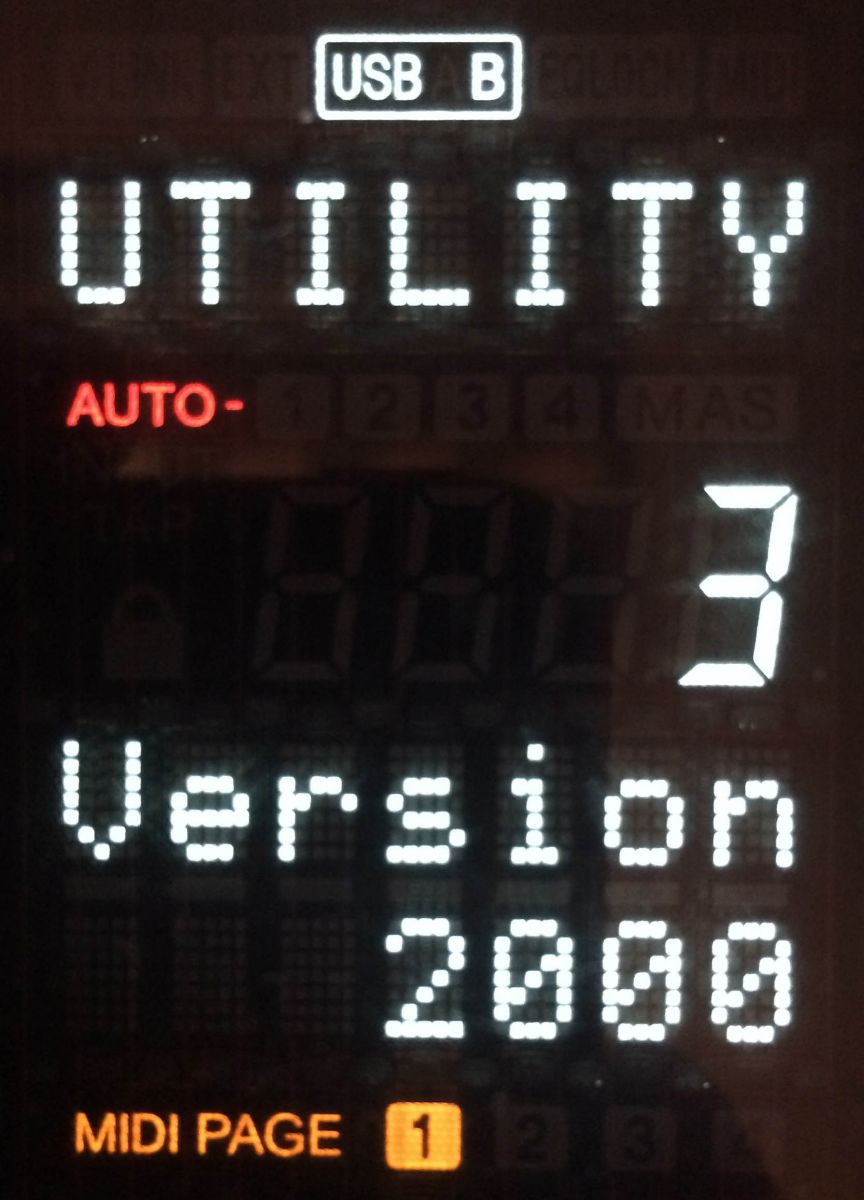
- Press Utility.
- Turn EFX Select Encoder to setting 2: System.
- Push the EFX Select Encoder.
- Turn the EFX Select Encoder until you see 3: Version.
- If version is prior to 2000, update the firmware.
- If needed you can download the latest version of the firmware here. Update instructions are included.
Setting the DN-X1600 to Mac Mode
Next, let's make sure the DN-X1600 is set to Mac Audio Mode.
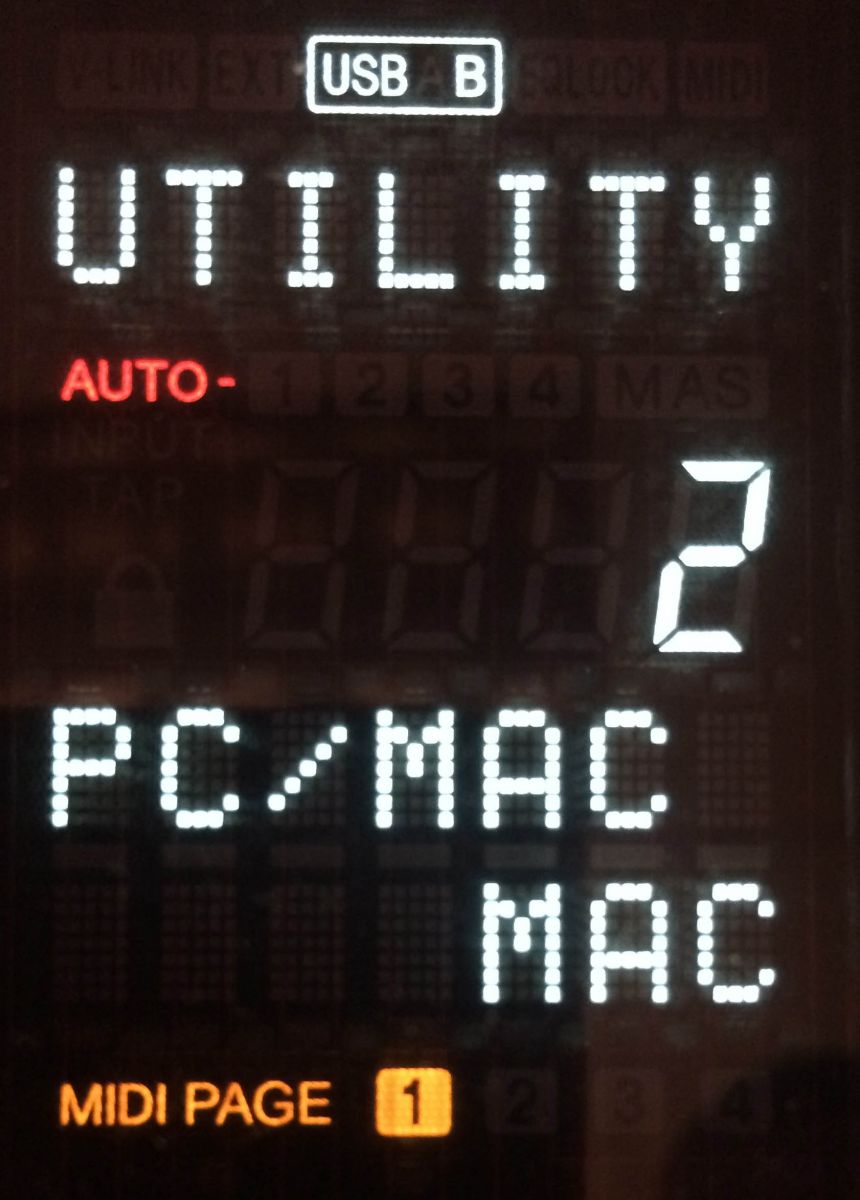
- Press Utility.
- Turn EFX Select Encoder to setting 2: System.
- Turn the EFX Select Encoder until you see PC/MAC.
- Ensure this is set to MAC mode (USB cable must be disconnected to change this setting).
- Use the EFX Select Encoder to select and choose MAC.
Select your Sampling Frequency
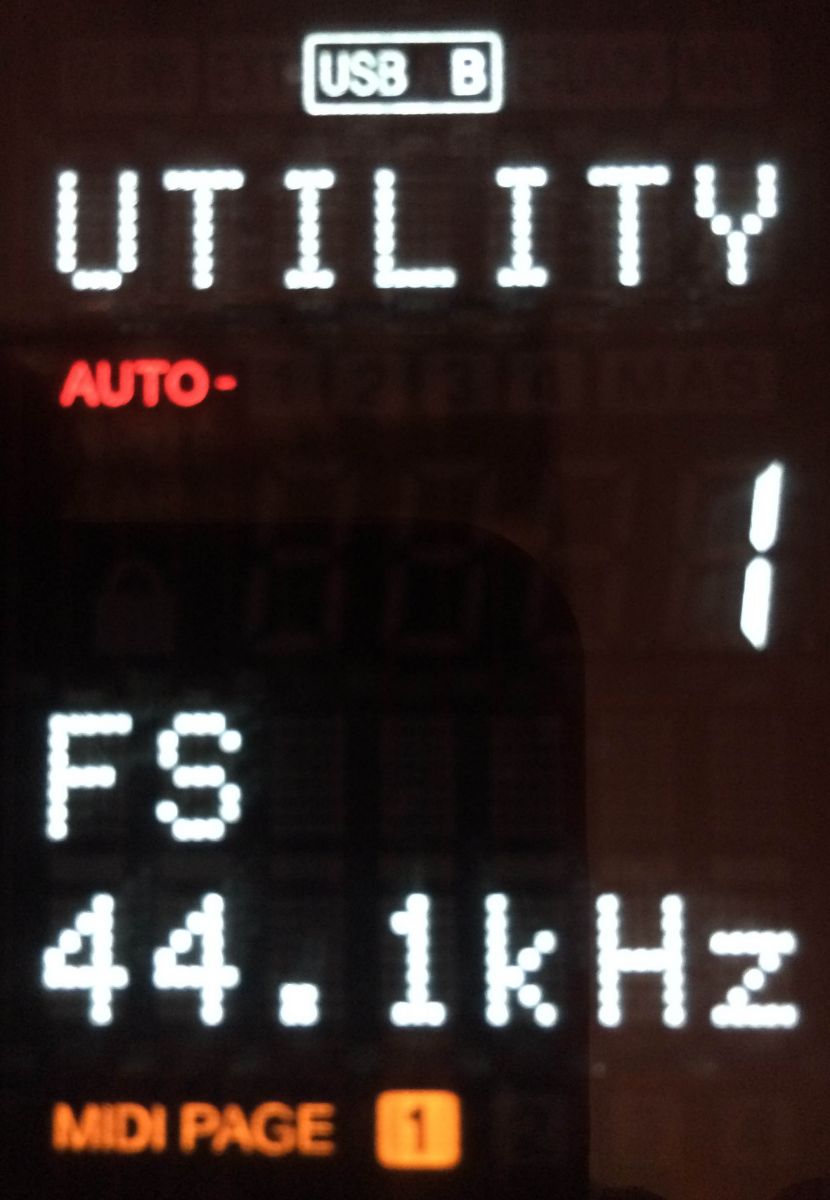
- Press Utility.
- Turn EFX Select Encoder to setting 2: System.
- Select 1: FS (Frequency Select)
- Choose your desired Frequency format (44.1 kHz, 48 kHz or 96 kHz).
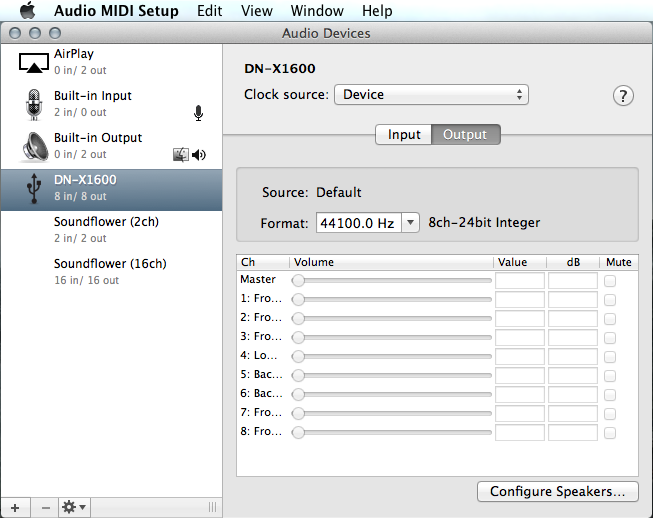
Important: Frequency settings on the Mac and Mixer MUST be set to the same rate. I recommend setting the DN-X1600 to 44.1 kHz and selecting 44100.0 Hz in the Audio MIDI Setup on your Mac.
Assigning the DN-X1600 to USB B Mode
Next, be sure that the DN-X1600 is set to USB B mode which enables the USB Audio and MIDI functionality of the mixer.
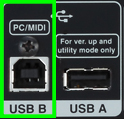
- Press and hold the Utility button for 2 seconds.
- Turn the EFX Select Encoder until it reads Device? OK.
- Push the EFX Select Encoder to select.
- You will notice now that USB B is illuminated at the top of the screen.
Additional USB/MIDI Setting instructions can be found on pages 16-18 of the Owner’s Manual.
Audio MIDI Setup
- Connect the DN-X1600 to your computer via USB.
- Open Audio MIDI Setup and verify that the mixer is recognized by your computer.
- Ensure that the Format matches the Sampling Frequency of the DN-X1600.
Mac System Preferences
Follow the steps below to set the DN-X1600 as your default device for sound output on your Mac.
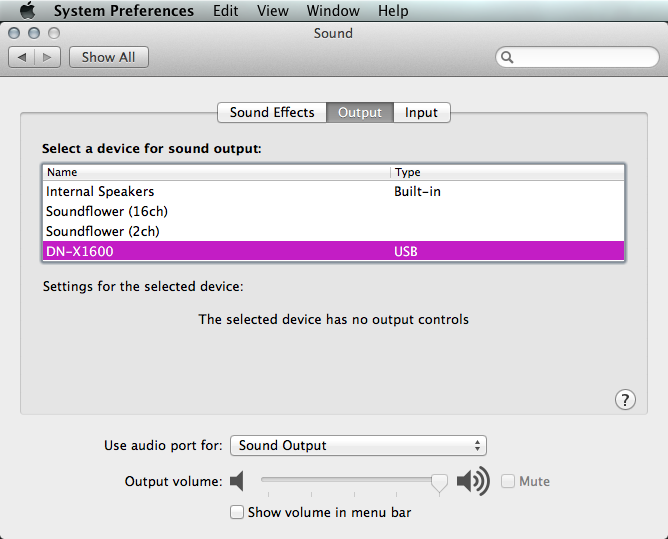
- Open System Preferences… > Sound.
- Choose the Output Tab and select the DN-X1600 - USB.
- On Channel 1 of the DN-X1600 mixer turn the Source Sel knob to USB 1/2.
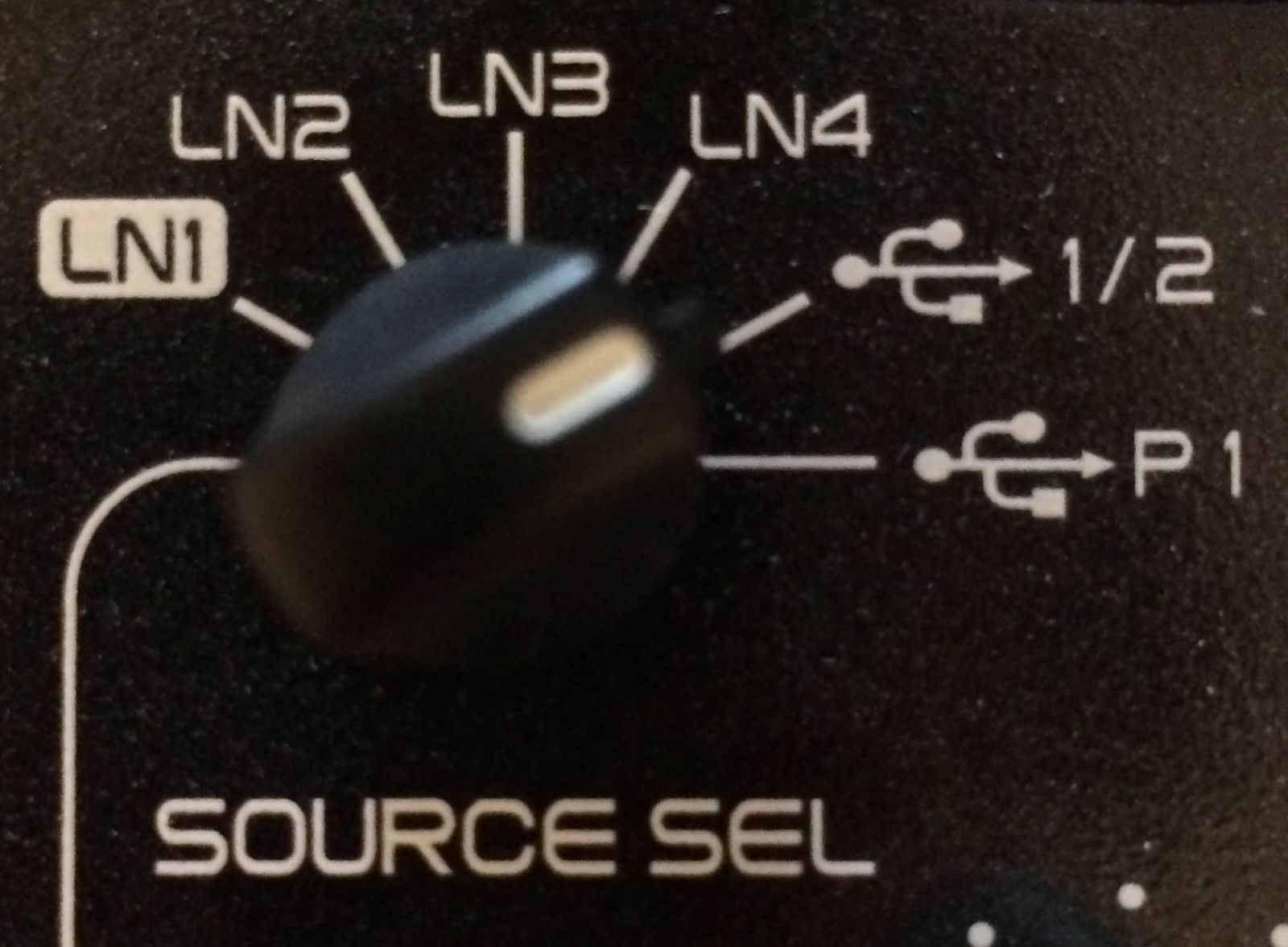
- You should now see levels and hear the audio from your computer.
Further Technical Support
Whether you are a customer or dealer, if you already own a Denon DJ product, or if you just have pre-sales questions, the Denon DJ technical support team is available to help!
Visit the link below to connect with any of the following support options: online community support, phone support, email support.