


Denon DJ DN-X1600 - Setup with a Mac Computer
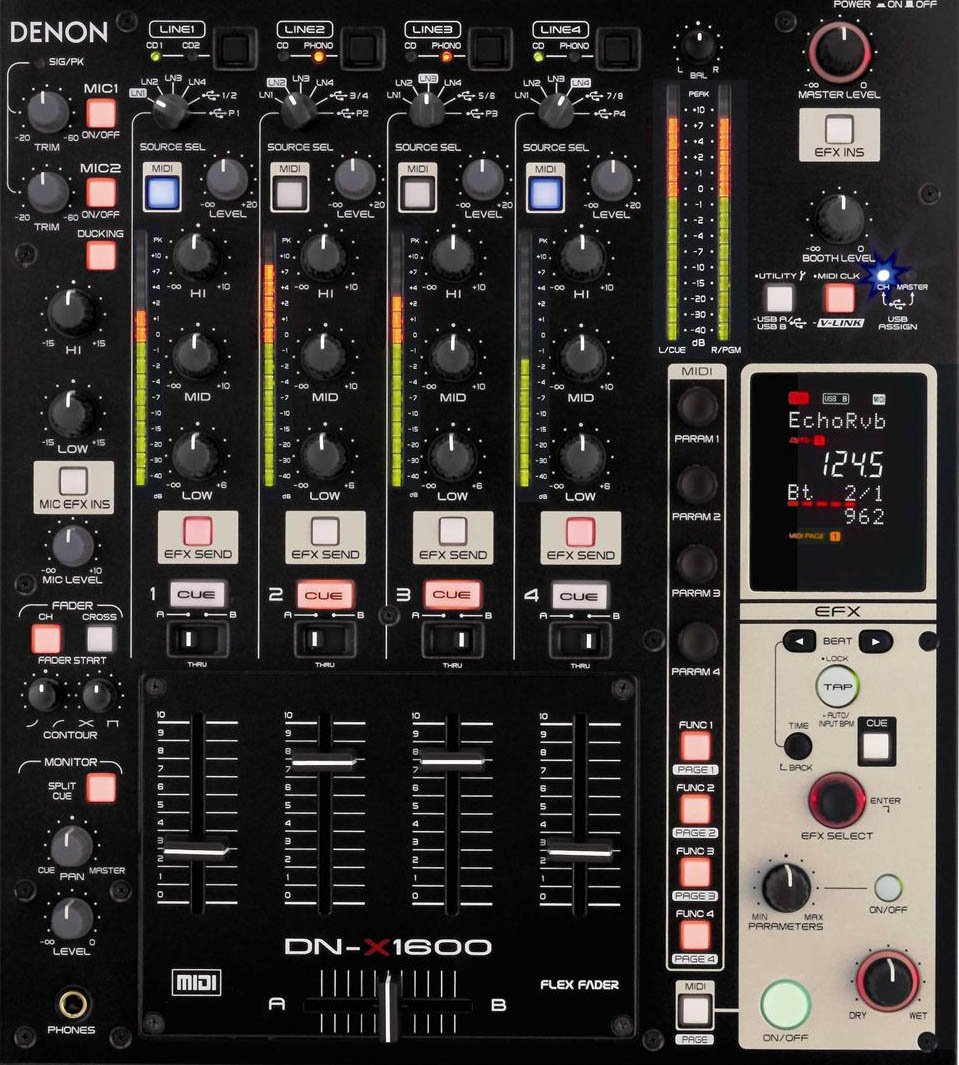 The Denon DJ DN-X1600 is a class compliant audio device and does not require any additional drivers to work on in Mac computers. If the mixer is not immediately recognized by you Mac here’s a few things you can check. This guide will also show you how to setup the DN-X1600 as your default device for sound output on your Mac.
Contents:
- Check Firmware Version
- Setting the DN-X1600 to Mac Mode
- Select your Sampling Frequency
- Assigning the DN-X1600 to USB B Mode
- Audio MIDI Setup
- Mac System Preferences
- Further Technical Support
Check Firmware Version
First, ensure the mixer is running the latest version of the firmware which is currently v2000.
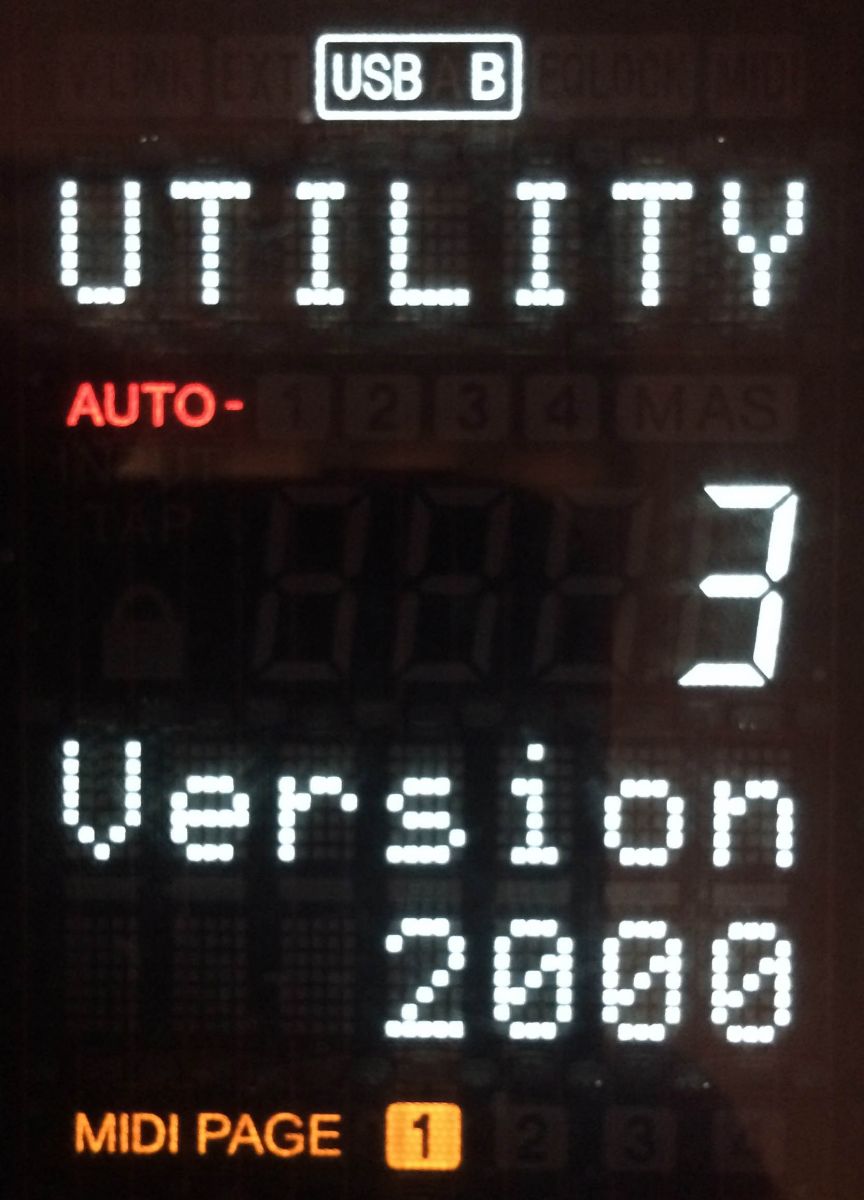
- Press Utility.
- Turn EFX Select Encoder to setting 2: System.
- Push the EFX Select Encoder.
- Turn the EFX Select Encoder until you see 3: Version.
- If version is prior to 2000, update the firmware.
- If needed you can download the latest version of the firmware here. Update instructions are included.
Setting the DN-X1600 to Mac Mode
Next, let's make sure the DN-X1600 is set to Mac Audio Mode.
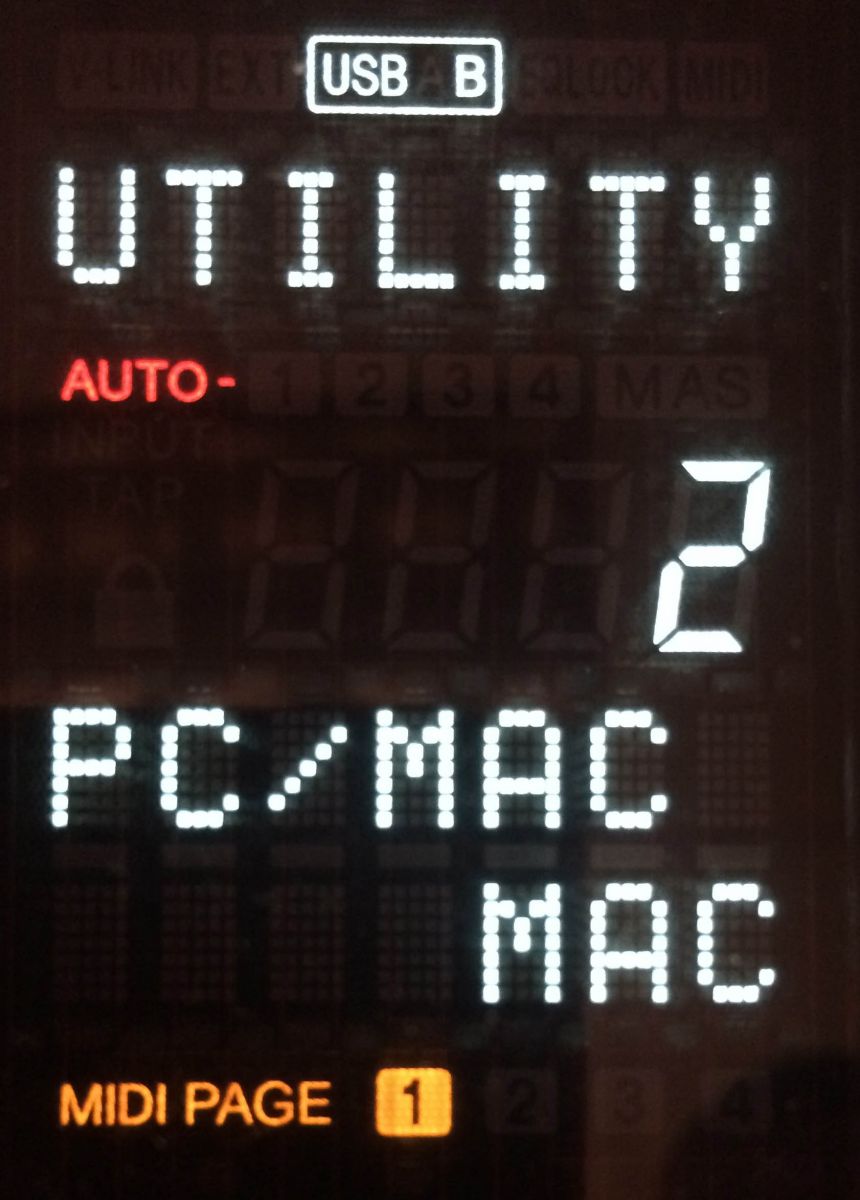
- Press Utility.
- Turn EFX Select Encoder to setting 2: System.
- Turn the EFX Select Encoder until you see PC/MAC.
- Ensure this is set to MAC mode (USB cable must be disconnected to change this setting).
- Use the EFX Select Encoder to select and choose MAC.
Select your Sampling Frequency
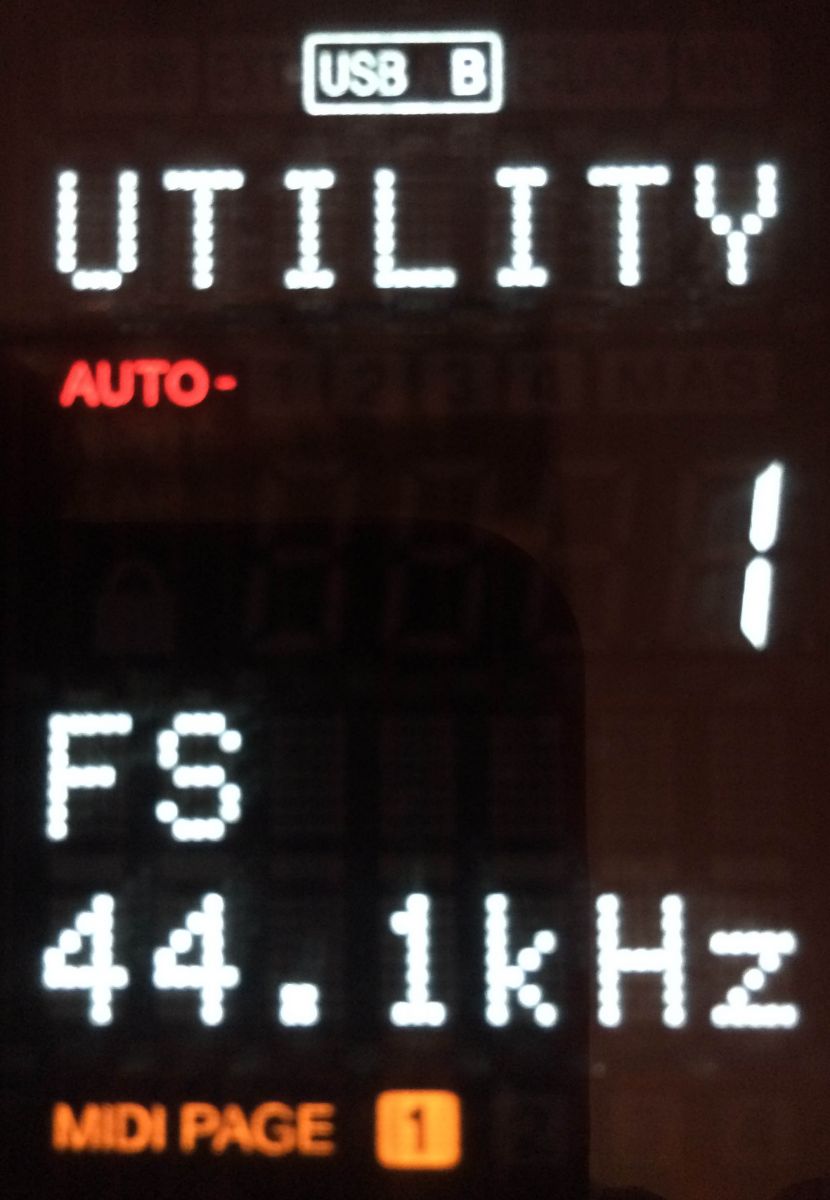
- Press Utility.
- Turn EFX Select Encoder to setting 2: System.
- Select 1: FS (Frequency Select)
- Choose your desired Frequency format (44.1 kHz, 48 kHz or 96 kHz).
Important: Frequency settings on the Mac and Mixer MUST be set to the same rate. I recommend setting the DN-X1600 to 44.1 kHz and selecting 44100.0 Hz in the Audio MIDI Setup on your Mac.
Assigning the DN-X1600 to USB B Mode
Next, be sure that the DN-X1600 is set to USB B mode which enables the USB Audio and MIDI functionality of the mixer.
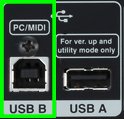
- Press and hold the Utility button for 2 seconds.
- Turn the EFX Select Encoder until it reads Device? OK.
- Push the EFX Select Encoder to select.
- You will notice now that USB B is illuminated at the top of the screen.
Additional USB/MIDI Setting instructions can be found on pages 16-18 of the Owner’s Manual.
Audio MIDI Setup
- Connect the DN-X1600 to your computer via USB.
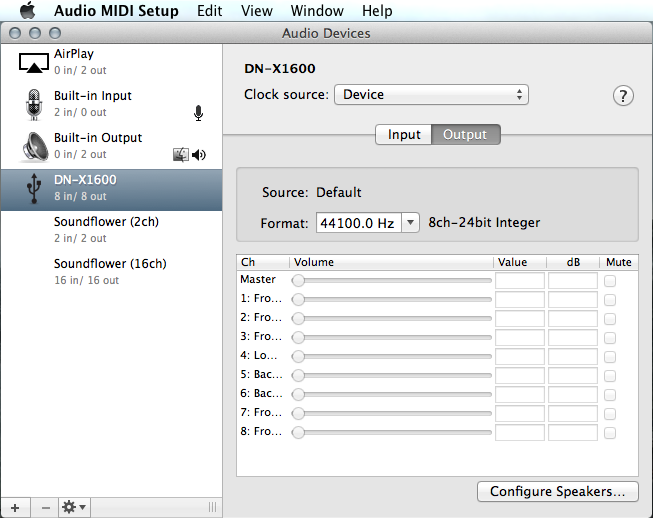
- Open Audio MIDI Setup and verify that the mixer is recognized by your computer.
- Ensure that the Format matches the Sampling Frequency of the DN-X1600.
Mac System Preferences
Follow the steps below to set the DN-X1600 as your default device for sound output on your Mac.
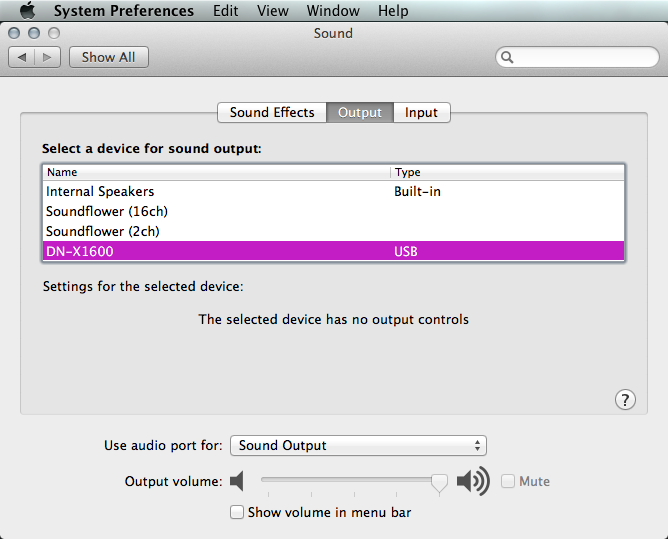
- Open System Preferences… > Sound.
- Choose the Output Tab and select the DN-X1600 - USB.
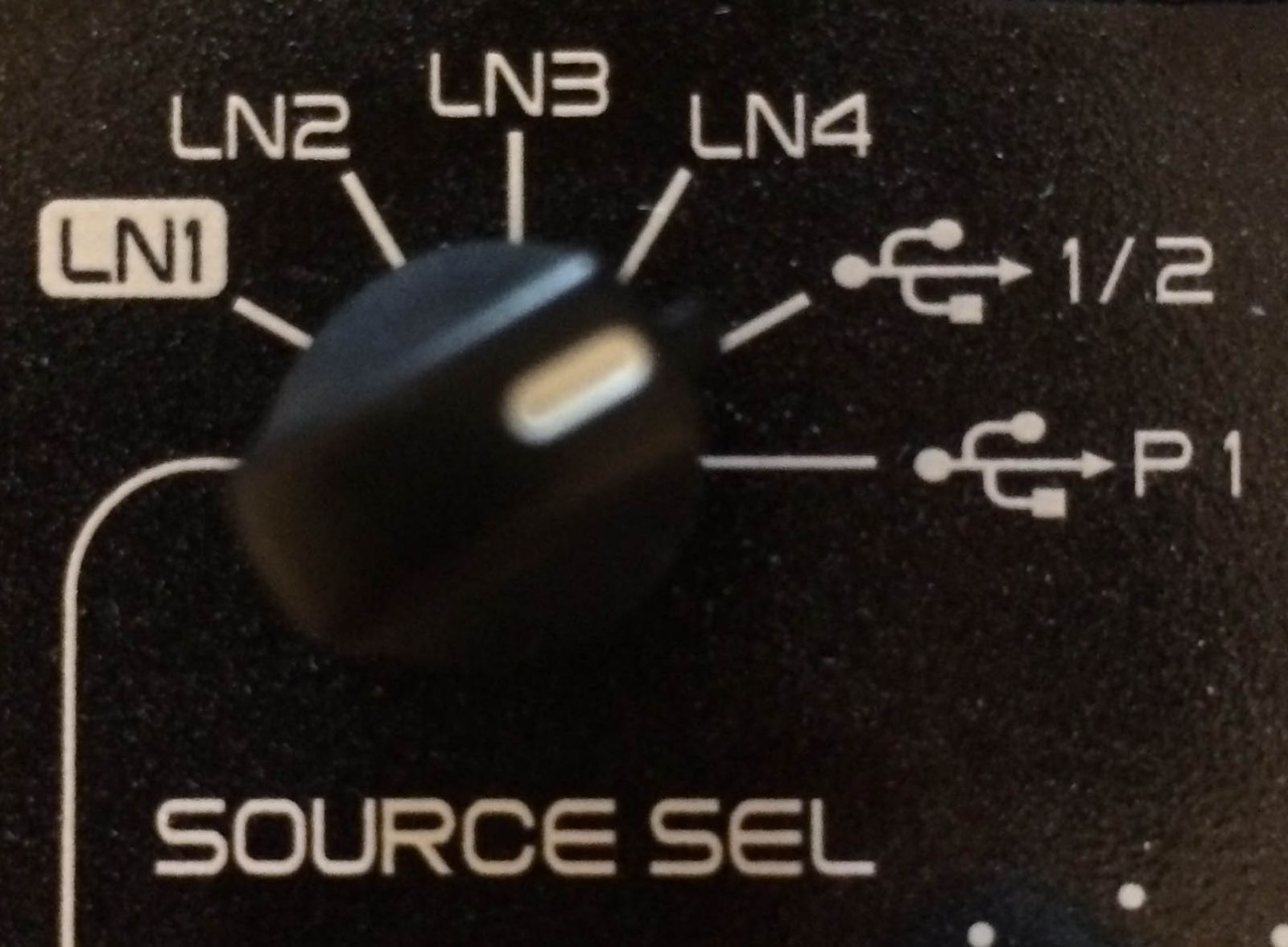
- On Channel 1 of the DN-X1600 mixer turn the Source Sel knob to USB 1/2.
- You should now see levels and hear the audio from your computer.
Further Technical Support
Whether you are a customer or dealer, if you already own a Denon DJ product, or if you just have pre-sales questions, the Denon DJ technical support team is available to help!
Visit the link below to connect with any of the following support options: online community support, phone support, email support.